 Comeau Computing Tech Magazine 2024
So your video won’t play. Maybe it’s a black screen, maybe it’s that dreaded “can’t play this file” message, or maybe it opens fine and then freezes three seconds in. Whatever the symptom, it’s a bad feeling, especially if there’s no version of you re-shooting whatever’s on that file.
Take a breath, though, because most of the time this is fixable. The actual video data almost always survives; what breaks is the structure around it, the part that tells a player how to read the file. I’ve put together seven ways to get it playing again below, starting with the stuff that takes two minutes and working up to the heavier tools you’d only need for real damage.
Why Do MP4 Files Even Get Corrupted?
An MP4 is more than just picture and sound. There’s a layer of metadata in there too, instructions that tell your media player how to decode and display everything. Damage that layer and the footage can be perfectly intact underneath while the file still refuses to open.
A few of the usual suspects:
- Power cuts out while you’re still recording
- The battery dies before the file finishes writing
- You pull the SD card out a little too soon
- A transfer gets interrupted halfway through
- Malware finds its way onto the drive
- The storage device itself is on its way out
- Your editing software crashes mid-export
Honestly, the fix you should reach for depends a lot on how bad it is. A clip that stutters once in a while is a totally different problem from a file that won’t open at all, so don’t jump straight to the nuclear option.
Method 1: A Free Online Repair Tool
If installing software isn’t your thing, start here. Upload the broken file from whatever device you’ve got, phone, tablet, laptop, and let the tool do its scan. A few minutes later you download the fixed version and see if it worked.
It tends to handle these pretty well:
- MP4 and MOV files
- Smartphone recordings
- DSLR clips
- Drone footage
- Action camera videos
It runs in the browser, so Windows or Mac doesn’t really matter here, which is honestly the main appeal if you just want to repair a video online for free and be done with it.
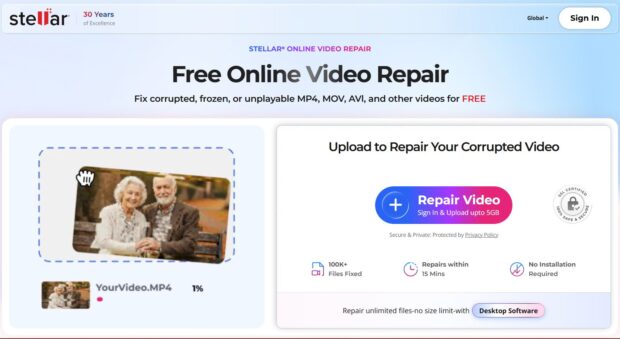
Figure 1: Uploading a file to Stellar’s online video repair tool.
Method 2: See If VLC Can Do It
Not many people know VLC has a rough repair function tucked away for AVI files, and sometimes just converting an MP4 through it clears up a playback issue on its own. It’s not a real repair tool by any stretch, and I wouldn’t count on it for anything serious, but it’s free and takes thirty seconds, so it’s worth a shot before you move on.
Method 3: Rebuild the Container in FFmpeg
Occasionally the video itself is completely fine and it’s the container, the MP4 wrapper around it, that’s causing the trouble. FFmpeg can remux the file, which basically means rebuilding that outer shell without re-encoding anything inside it.
Good for:
- Playback errors
- Missing indexes
- Container-level corruption
Two catches: you’ll need to be okay typing commands, and this won’t touch anything if the actual video data is what’s damaged rather than the wrapper around it.
Method 4: Look for an Older Copy First
Before you go down the repair-tool rabbit hole, it’s worth thirty seconds to check whether an earlier version of the file is sitting somewhere already.
People forget this step constantly, and restoring a backup beats repairing a damaged file basically every time.
Check:
- Google Drive
- Dropbox
- OneDrive
- Time Machine
- Windows File History
Find one there and you’re done, no repair needed at all.
Method 5: Bring in Professional Repair Software

Nothing above worked? You’re probably looking at real structural corruption at this point, and that calls for a tool built specifically for it.
Dedicated repair software goes further than any media player, reconstructing damaged headers, rebuilding lost metadata, and piecing the playable stream back together from what’s left.
It tends to shine on footage from:
- iPhone
- Android devices
- DSLR cameras
- Mirrorless cameras
- GoPro
- DJI drones
- Professional camcorders
If the footage actually matters to you, and it usually does by this point, a dedicated repair tool is going to give you far better odds than banking on free software to pull it off.
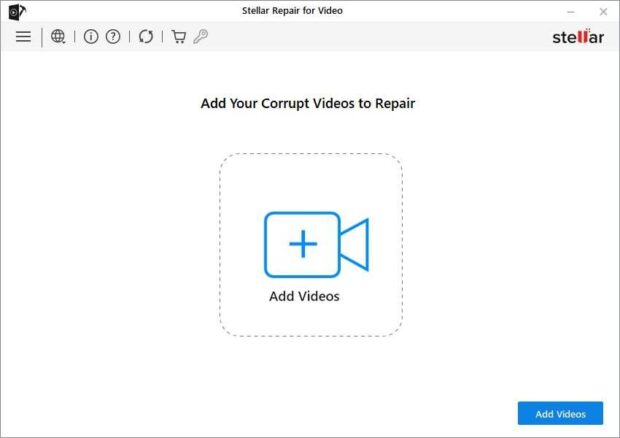
Figure 2: Stellar Repair for Video handles MP4, MOV, AVI, MKV, and several other formats.
For the worst cases, you sometimes need a second, healthy video shot on the same device with the same settings.
The software compares that sample against the broken file’s structure and uses it as a reference to fill in whatever’s missing. Works especially well when recording got cut off mid-shot or the header took heavy damage.
Method 6: Stop This From Happening Next Time
Repairing a video is nice, but not needing to in the first place is better. A handful of habits make a real difference:
- Eject SD cards properly instead of just yanking them out
- Don’t start a recording on a battery that’s about to die
- Transfer files using storage you actually trust
- Leave some breathing room on memory cards instead of filling them to the brim
- Back footage up soon after you shoot it, not weeks later
- Buy decent SD cards instead of the cheapest option available
None of this makes you bulletproof, but it cuts your odds of dealing with this again by a lot.
So Which One Do You Actually Pick?
| Situation | Best option |
| Minor glitches or brief freezing | VLC or FFmpeg |
| A small MP4 that won’t open at all | An online video repair tool |
| Phone-recorded video | Online or Desktop video repair |
| DSLR, drone, or GoPro footage | Desktop video repair software |
| Severely corrupted files | Professional-grade video repair software |
My honest advice: try the free online tool first. It costs you nothing but a few minutes, and it’ll tell you pretty quickly whether the file is worth fighting for. If that doesn’t cut it, or the footage is too important to gamble on, that’s your cue to move to desktop software.
A Few Quick Questions People Ask
One Last Thing
Corrupted footage never picks a convenient time. It’s the family video, the client deliverable, the drone shot you only got one take of. But in most cases, the file isn’t actually gone, it’s just locked up, and that’s a solvable problem.
Start small: a free tool for a quick clip, real repair software when the stakes are higher or the damage runs deeper. Either way, don’t assume it’s lost before you’ve actually tried.
